Edit an AsyncAPI API
An AsyncAPI 3.0 document has the same frame as an OpenAPI one, a tree and a form per node, and adds what events need: servers with protocols, channels and their messages, operations that send or receive, bindings for the brokers, and a diagram of the flow. AsyncAPI 2.x documents open for import only; Import, export and bundle converts them.
The tree
Info, Servers, Channels, Operations, Messages and Components. An operation’s row shows its action as an arrow before its name. Two menus beside the search box filter the tree by protocol and by direction, when the document has more than one of either. The + of each section adds a server, a channel, an operation or a message, and Components asks which kind.
Servers
A server’s form has its host, protocol and protocol version, path name, title, summary and
description, then its variables, its bindings and its external documentation. The Protocol
menu lists the protocols of the standard, from amqp to pulsar. When a server carries a
binding for the protocol it had, changing the protocol asks whether to remove that binding or
keep it. Variables is a table of the {placeholders} of the
host and pathname: a placeholder without a variable reads Not described, with Describe to add
it, and a variable the host does not use is marked.
Channels
A channel’s form has its address, title, summary and description. Parameters is a table of the
{placeholders} of the address, each with a description, allowed values, a default and a
location, and Describe for one that has no parameter yet. Servers is a checkbox per server of
the document (none checked: all). Messages lists the messages the channel carries, each a chip
that opens it, and Add a message… offers the component messages not yet on the channel. The
channel’s bindings come last.
Operations
An operation’s form has its Action, send or receive, its channel as a menu of the document’s channels, title, summary and description, security and tags; Messages, the messages of the operation among the channel’s, with Add a message of the channel…; Reply, with the channel and messages of the reply, or Add a reply; the operation’s traits; and Try it: publish and subscribe, which Try it out covers.
Messages
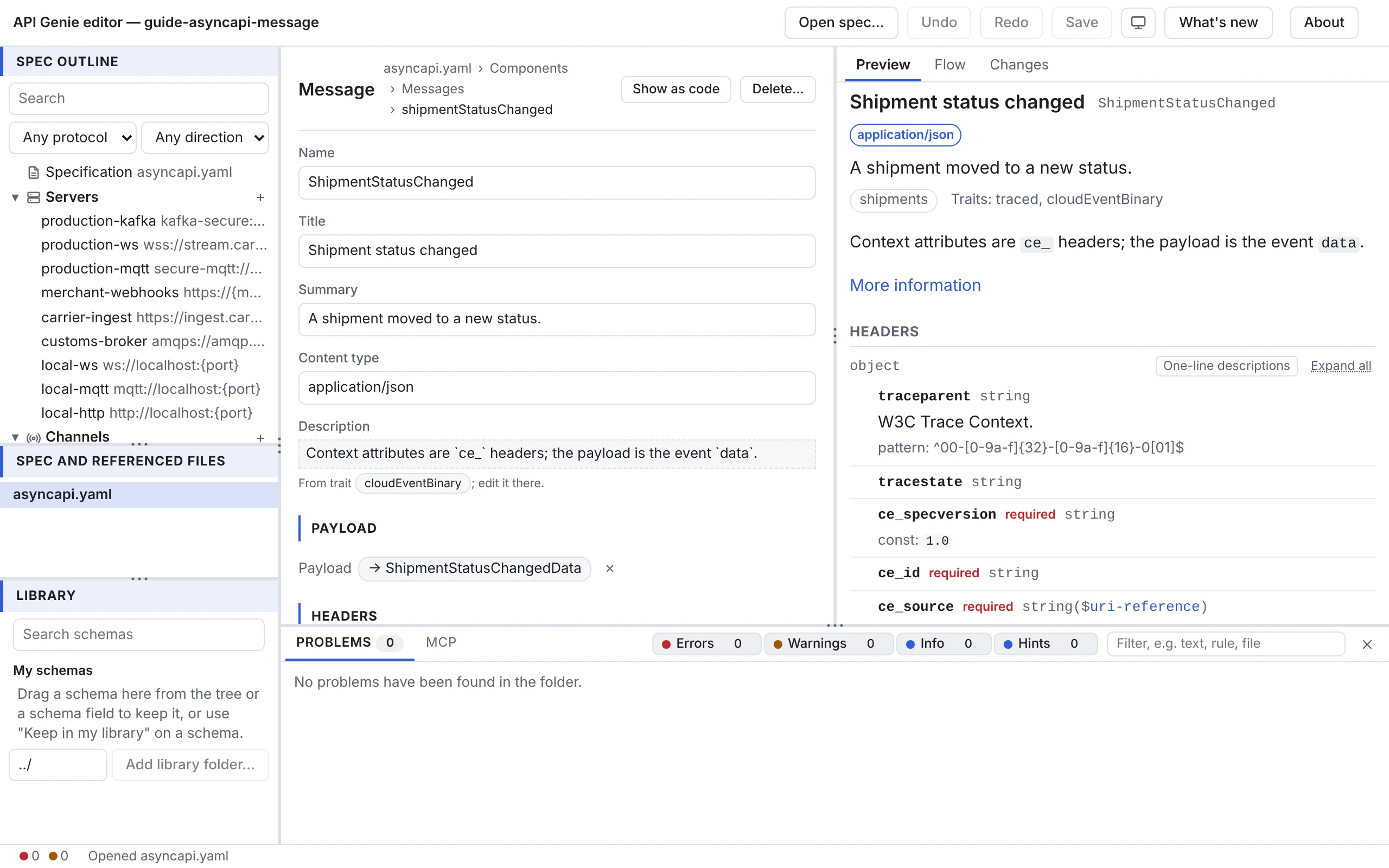
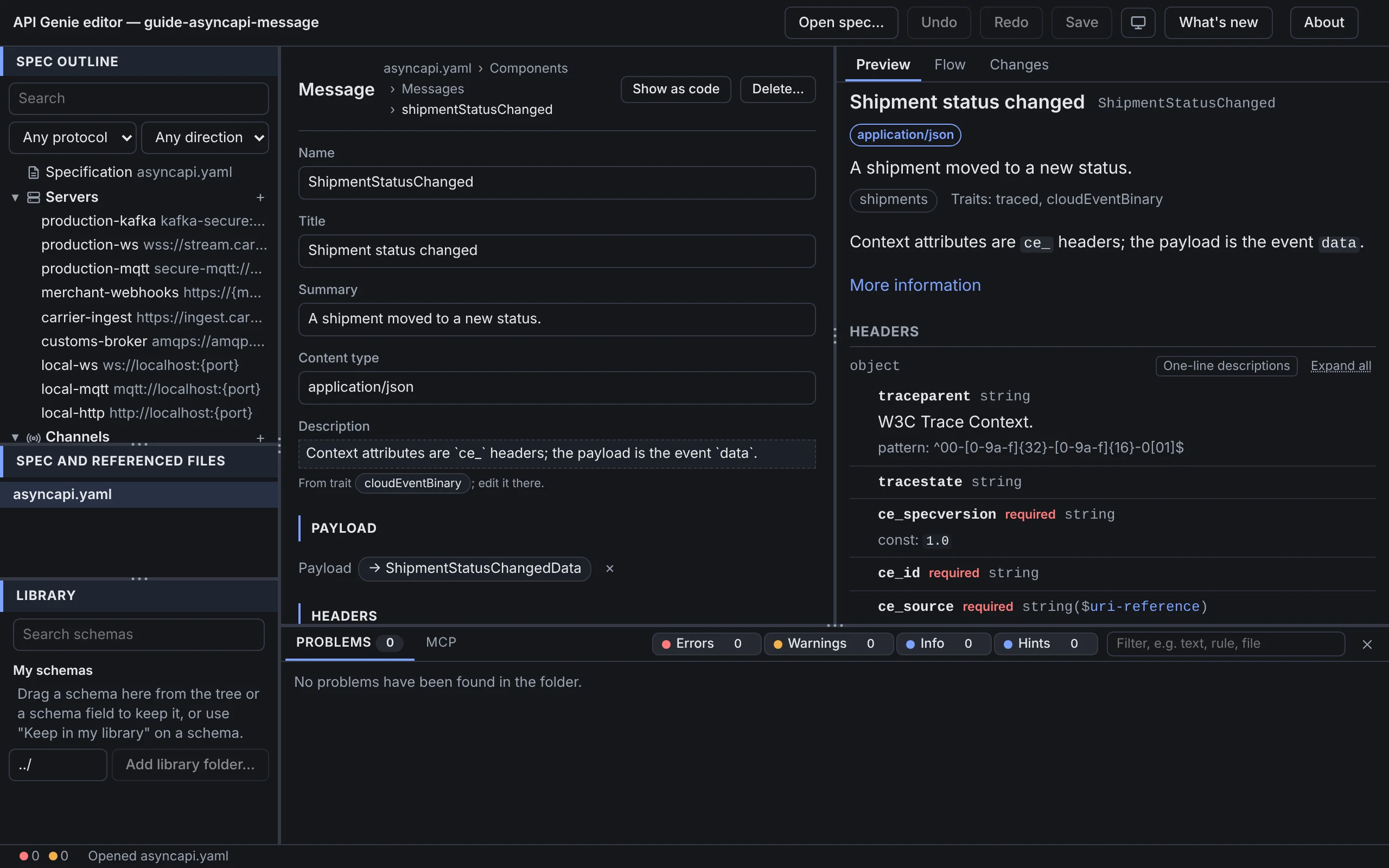
A message’s form has its name, title, summary, content type and description. The Payload and
Headers sections start with the Schema format menu: JSON Schema, the default, opens
the schema editor; Avro, Protobuf, RAML, OpenAPI and the
other formats of the standard are edited as code, or shown as a chip that opens the schema’s
file when the payload is a $ref to one. Changing the format from JSON Schema to another moves
the schema under a Multi Format Schema Object, and back out again.
Correlation ID takes a location, such as $message.header#/correlationId, with a menu of the
top-level properties of the headers and the payload as ready-made expressions. Examples lists
the message’s examples with a name, a summary, a payload and headers as YAML, and Generate
payload from the schema for each. Traits shows the message’s traits as chips and Add a trait…
with the component traits. A field the message does not have itself but a trait gives is shown
read-only, with From trait X; edit it there. A trait’s own form lists the messages or operations
that use it.
Bindings
Servers, channels, operations and messages have a Bindings section with one block per protocol of the document. Kafka, AMQP 0.9.1, MQTT and WebSocket have typed forms: the topic, partitions and replicas of a Kafka channel, the exchange or queue of an AMQP channel, the QoS and retain flag of an MQTT operation, the method, query and headers of a WebSocket channel, and so on. The bindings of other protocols, and the fields the forms leave out, are edited as code in the section.
The flow diagram
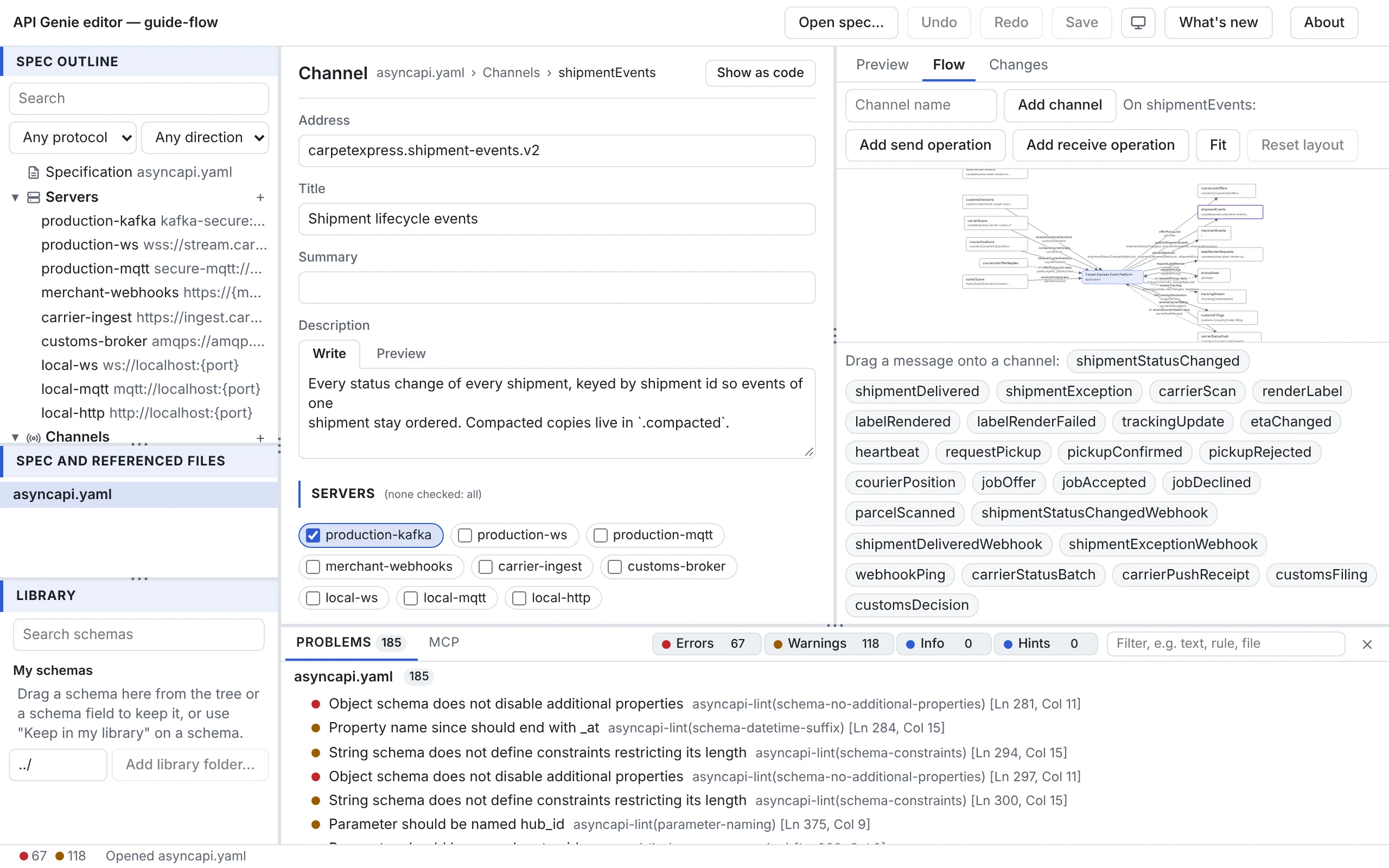
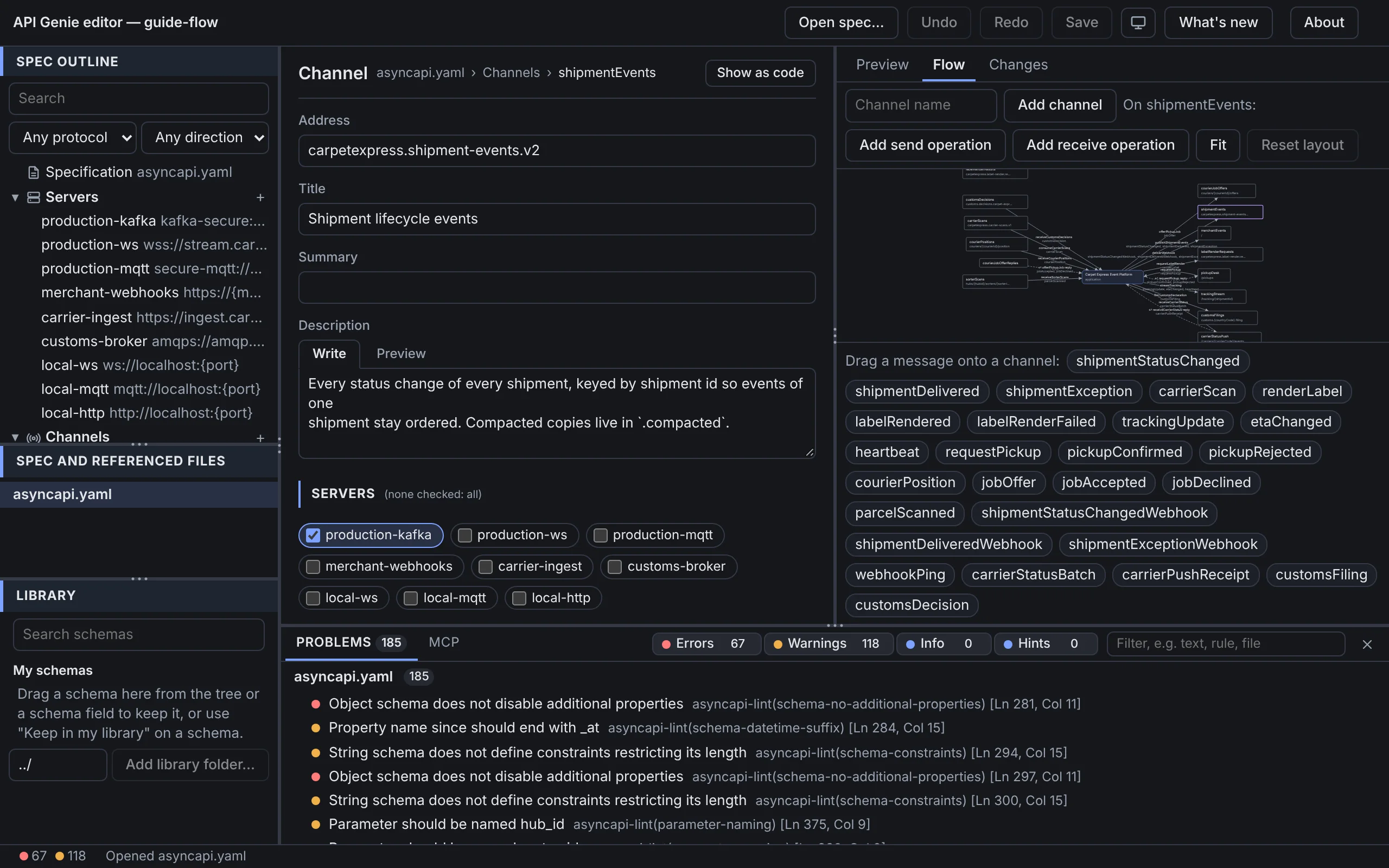
The Flow tab of the right pane draws the document: the channels, the applications that send to and receive from them, and an arrow per operation named after its messages. Click a channel in the diagram to select it in the tree. Its toolbar edits the document: type a name and Add channel, then, with a channel selected, Add send operation or Add receive operation on it; drag a message from the row under the toolbar onto a channel to add it to the channel’s messages. Fit brings the whole diagram into view, and Reset layout forgets the positions you dragged the nodes to, which the editor keeps per file on this computer.
Next
Work with the code is for the parts a form shows as code, and for the whole file.