The Library
The schemas that recur across APIs, such as Error, Money or Page, belong in the Library:
it keeps them once, outside your files, and puts them into a spec with a drag. It has two parts:
My schemas, kept by the editor for you, and library folders, shared with your team through Git.
Open the Library
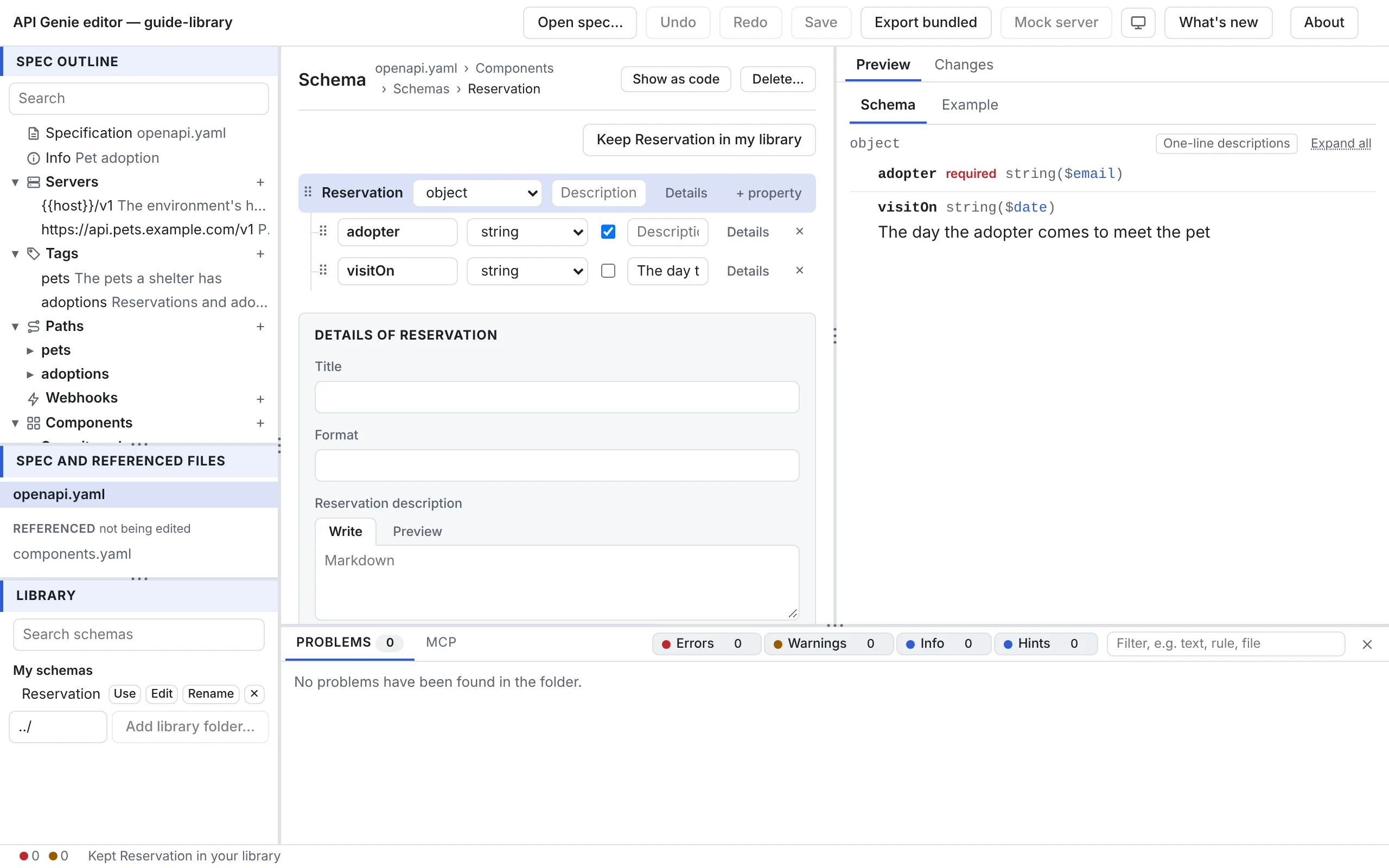
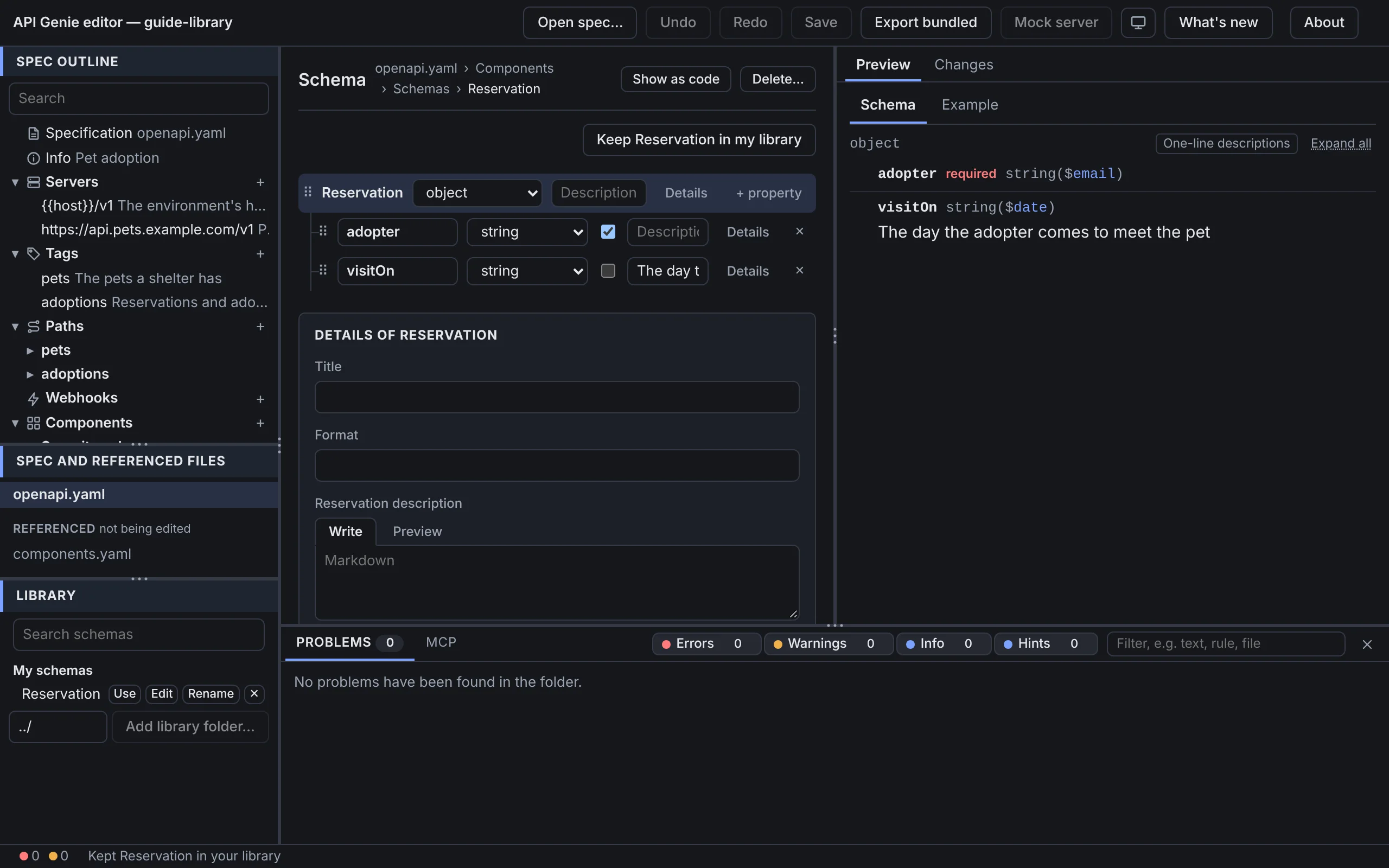
The Library panel of the side bar, under the file list, shows both parts, with Search schemas above them to filter by name. A click on a row shows the schema’s YAML under it.
Keep a schema
Open a schema’s form and press Keep Order-2 when the name is taken,
and brings along the schemas it refers to. Edit on a row opens the schema in a form, Rename
renames it and ✕ deletes it.
My schemas live where the host keeps them: the browser’s storage for the site, the desktop app’s own storage, the extension’s global storage in VS Code. Nothing about them is written to a spec, and nothing moves between hosts by itself.
Share schemas through a folder
A library folder is a folder of YAML or JSON files beside or above the spec folder, at most eight
levels up, such as a shared repository checked out next to the API’s. Each file lists schemas
at its top level, or under components/schemas when it is a spec. A $ref from the spec into a
library folder is a relative path, ../shared/errors.yaml#/Error, which resolves, renames and
inlines like any reference between two files.
How a folder is added depends on the host. On the desktop, Add a library folder… opens the
folder dialog. In the web editor, type where the folder is, relative to the spec folder, then
Add library folder… and pick it; Chrome and Edge only. In VS Code, list the folders in the
apigenie.editor.libraryFolders setting, by their path from the workspace folder. The editor
remembers the folders per spec folder; after a restart, Open on a folder asks for access again
where the host needs it. ✕ closes a folder and forgets it.
Put a schema into the spec
Drag a row of My schemas, or a schema of a library folder, and drop it:
- on a schema field, such as a request body, a response, a parameter or a message payload. From My schemas, the editor asks whether to Copy it here or to Add it as a component and refer to it; from a library folder, whether to Refer to it in the library, to Copy it here or to Copy it into the components and refer to it;
- on a row of the schema editor: an object takes it as a new property named after it, an array
as its
items; - on the spec, or on its Schemas, in the tree: a new component, without asking.
Use on a row of My schemas adds it to the components of the selected file, as a drop on that
spec would. Each drop is one step of Undo. A copy brings the schemas it refers to, reuses a
component with the same name and content, and is converted to the dialect of the file it lands
in, from nullable to a null type and back; the status bar names what had no counterpart.
Move a schema out to a library file
Drag a schema of the spec onto a file of a library folder. Copy it into the file leaves the
spec as it is. Move it to the file and refer to it takes the schema out of the spec and puts a
$ref to the library in its place; the move is refused while the schema refers to other schemas
of the spec folder, which you copy first. Saving writes the library file into its folder.
Next
The Library in the reference has every rule of a drop, what comes along with a copy, and the dialect conversions. Keyboard shortcuts is the next chapter.