Review and save changes
Nothing reaches the disk until you save, and the editor tells you before that what the edits add up to: which changes break clients, which only touch the documentation, and what the version should become.
Undo and redo
Undo and Redo in the toolbar walk one history for all the open files, whether an edit came
from a form, from the code, from a quick fix or from a drop in the Flow. On the desktop, Edit ›
Undo and Edit › Redo (Ctrl+Z and Ctrl+Shift+Z, Cmd on macOS) do the same. In the code
editor, Ctrl+Z and Ctrl+Shift+Z work on the same history, on every host but VS Code. In
VS Code, the editor uses VS Code’s undo, per document, which also takes back what was typed in
its text editor.
The Changes tab
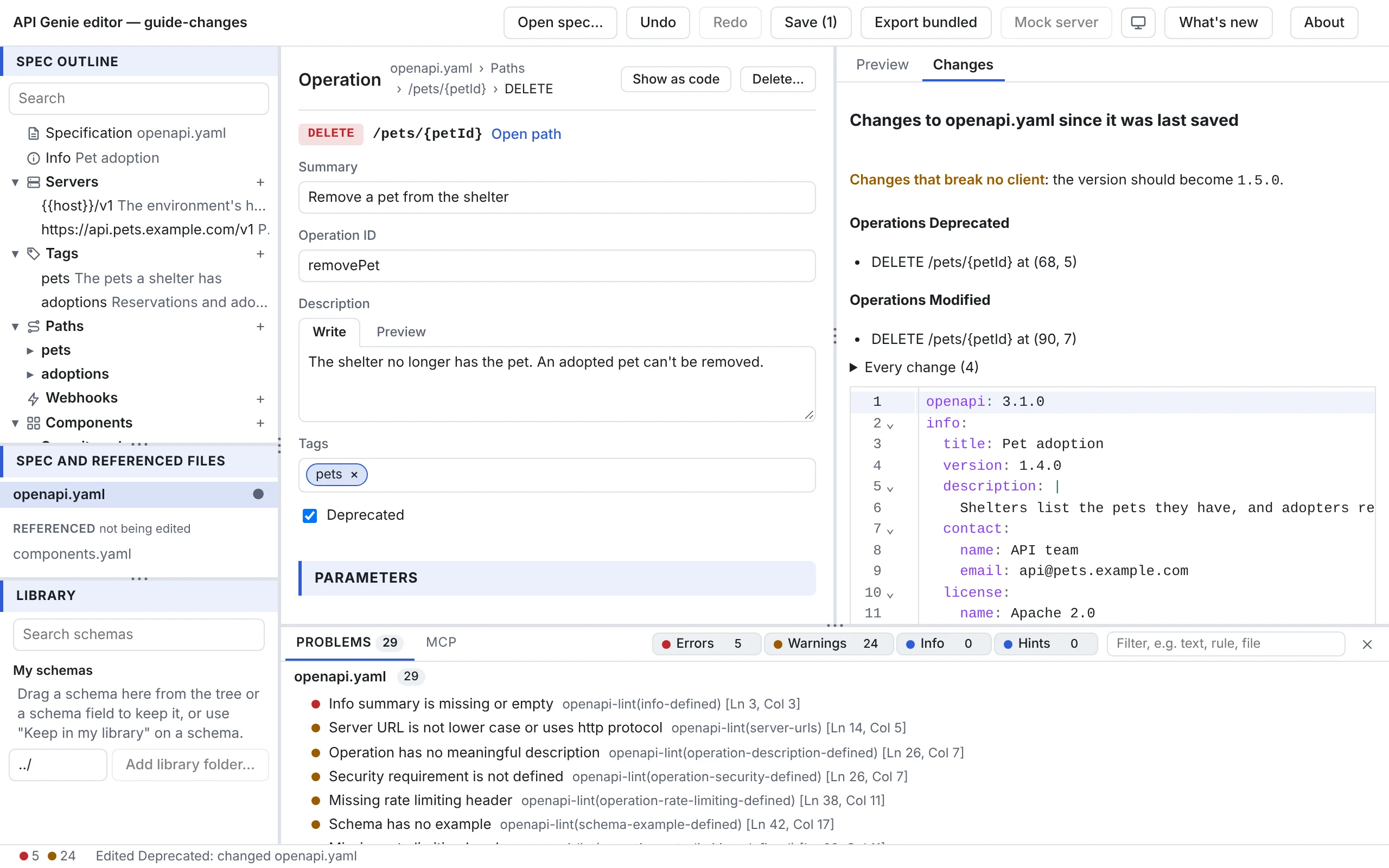
The Changes tab of the right pane compares the selected file with the version last saved,
with the same differ as apigenie diff, and refreshes as you type. Its first line is the
verdict: Breaking changes, Changes that break no client or Changes to the documentation
only, and the version the API should get, the one apigenie diff --update-version would write. A
changelog follows, as apigenie changelog would write it, then Every change (n), each change on
its line with its severity; a click on one selects the node it is about. The text diff of the
file comes last. No change to the API: the text changes are formatting, comments or order says
that the edits changed nothing a client would see.
Save
Save in the toolbar, or Ctrl+S, writes every unsaved file. The button shows their count, and
the file list marks each with a dot. On the desktop, File › Save As… writes the current file
anywhere on disk, and a copy saved inside the spec’s folder joins the open files. The editor asks
before it closes a spec, or opens another one, with unsaved files.
In the web editor, a spec picked with Open spec… in Chrome or Edge is written back to disk, with the files it refers to. A dropped file, or any file in Safari and Firefox, is saved as a download, because the page cannot write to it. In VS Code, Save asks VS Code to save its documents, and the unsaved marker is VS Code’s.
Files that change on disk
A git checkout, a formatter or another editor can change an open file. The editor reads it
again when its window gets the focus back; on the desktop, since 0.13.0, a file in the spec’s
folder or a library folder is read again about 300 ms after it changes. A file without unsaved
changes shows the new version. Since 0.13.0, a file with unsaved changes takes the disk’s changes
too, by a merge of its structure, key by key, and keeps your edits.
Where both changed the same value, the status bar says N conflicts with the disk. Its dialog, Changes on disk collide with yours, lists each conflict with both values: pick Keep yours or Take the disk’s for each, or Keep all yours and Take all the disk’s for all, then Apply; Later leaves the file as it is. Save writes the result. When either version has syntax errors, nothing is merged: the file keeps your changes, the status bar names it, and Save writes over the disk’s version.
In VS Code, VS Code reloads its documents, and the editor follows them.
Next
Try it out sends requests to a server from the preview.
apigenie diff in the reference has the severities and the version
rule.