Edit schemas
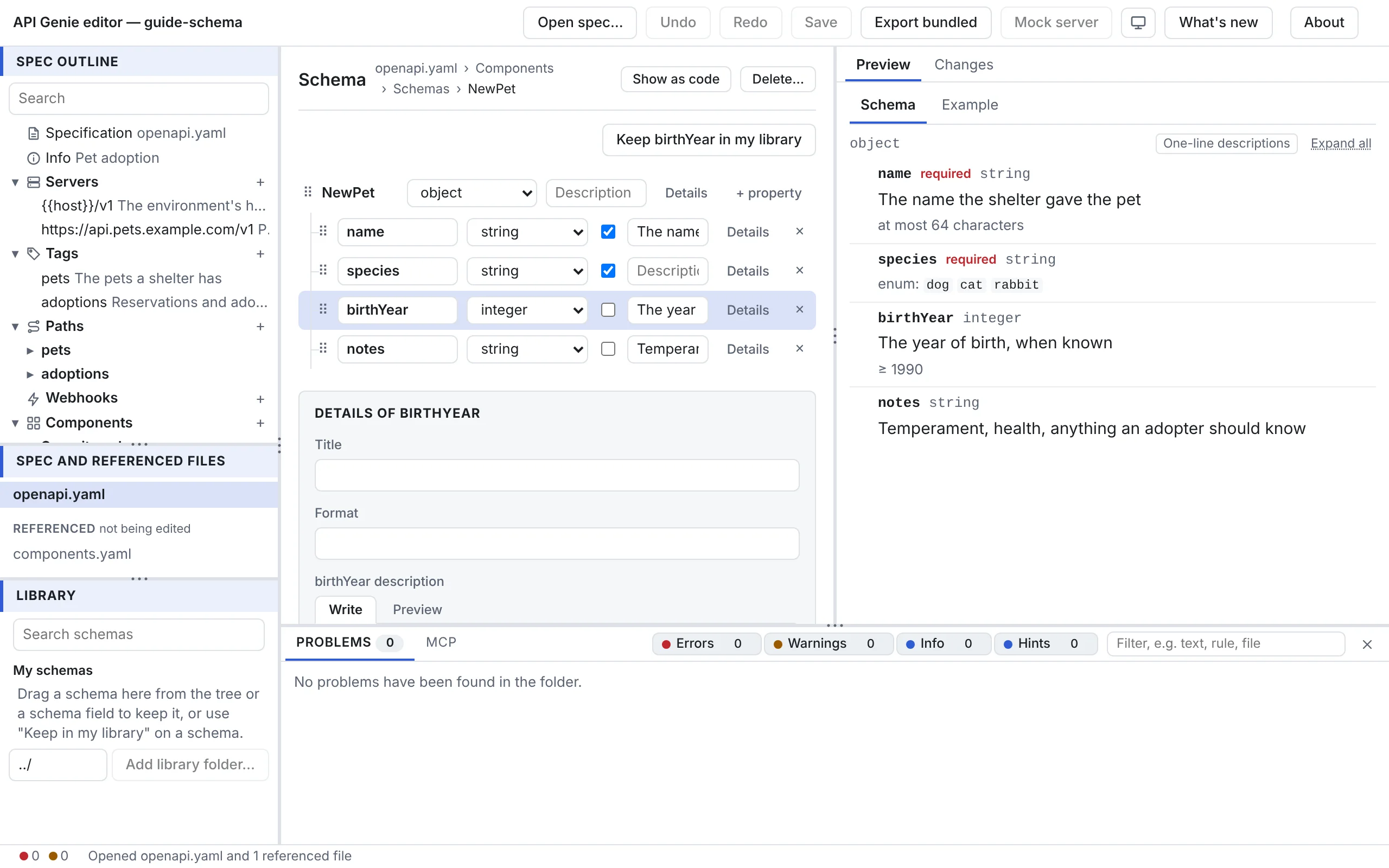
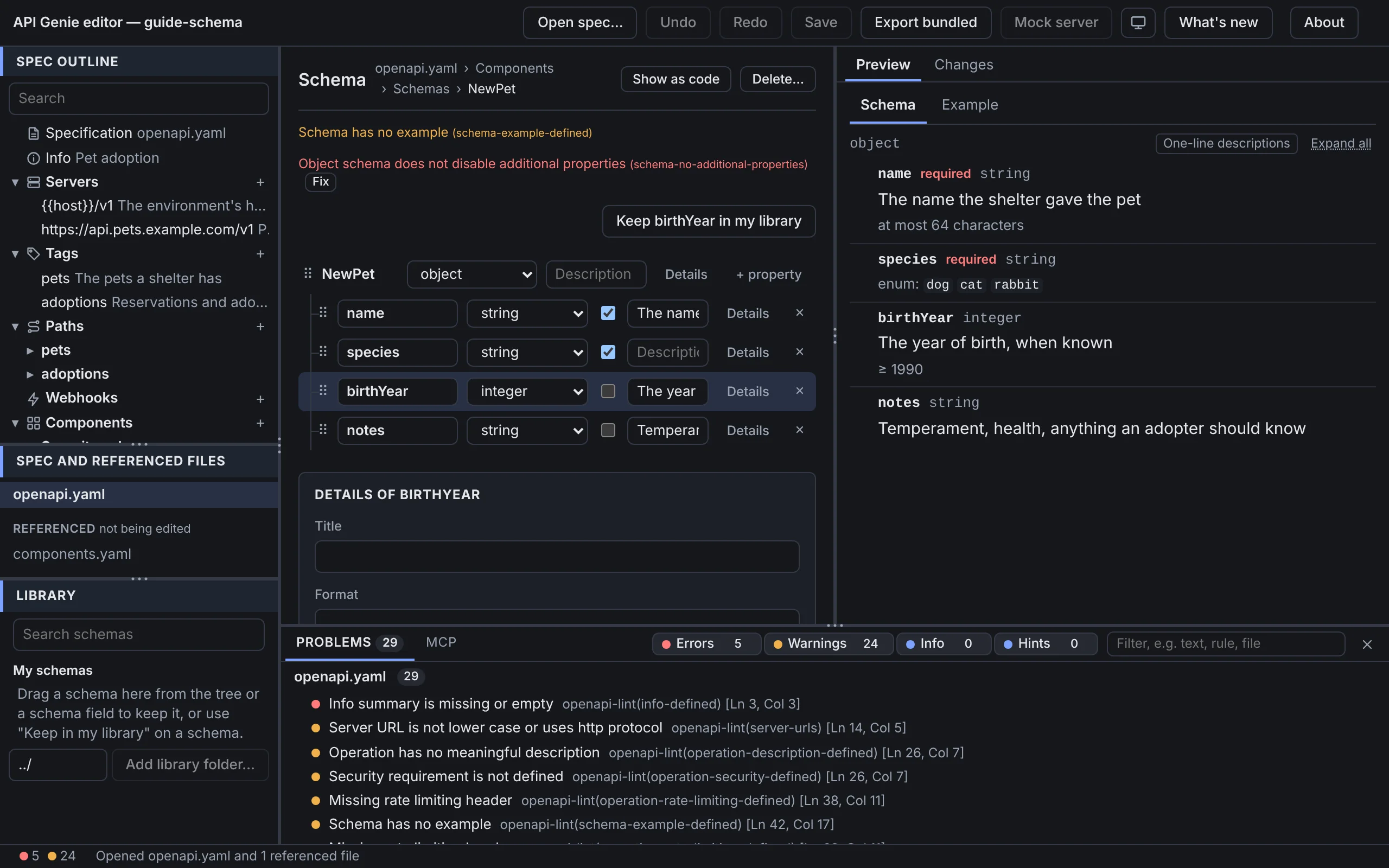
Every schema in the document opens in the same editor: a component schema from the tree, a parameter’s or a media type’s schema inside its form, an AsyncAPI payload in a message. It shows a schema as a tree of rows, one per property, item schema or branch, and keeps the keywords that need more room in a drawer.
The rows
The first row is the schema itself, named after its component or schema. Under it, indented, come
its properties, the items of an array, its additional properties when they have a schema, and
one group per composition (allOf, oneOf, anyOf) with its branches as #1, #2 and so on.
Each row has, from left to right: a handle to drag the schema by, its name (editable for a property), the type menu, required for a property, a one-line description, Details, + property on an object, and ✕ to remove a property, an item schema or a branch. A row whose schema has keywords the rows do not show carries a … chip; the details have them.
The type menu sets what the schema is: any, string, number, integer, boolean,
array or object; a composition, one of, any of or all of; a reference to a component
schema, listed by name under Reference; or Edit in code…, which opens the schema as text for
what the menu cannot express. A schema the menu cannot describe, such as one with two types or
with not, reads complex. Choosing a type for a schema that was a reference replaces the
reference; choosing object or array starts an empty one.
A reference row shows the component’s name as a chip that opens it, and Inline to replace the reference with a copy of the component. A reference that leads nowhere is marked.
The details
Details on a row opens its drawer under the tree. At the top are Title, Format, with the
formats of the type as suggestions (date-time, uuid, int64…), and Description. Values
holds the allowed values, as tokens or as YAML for objects and arrays, then Default, Constant
and Example, with Generate from the schema. Limits holds the keywords of the type: the
length and pattern of a string, and the minimum, maximum and multiple of a number. For an array
it holds the item count; for an object, the property count and whether other properties are
allowed, not allowed or must match a schema. Flags has Can be null, Read only, Write
only and
Deprecated, and Composition a button for each composition the schema does not have yet. The
drawer ends with the row’s remaining keywords, each marked (edited as code), and its
Extensions.
The keywords follow the document’s dialect. In OpenAPI 3.0, Can be null writes nullable: true,
there is no Constant, and exclusive limits are checkboxes. In OpenAPI 3.1, Can be null adds
null to the type, and exclusive limits take a number. An AsyncAPI payload uses JSON Schema
draft 7, which has an examples list instead of example.
Reuse a schema
In the drawer of a schema that is not a reference, Extract to component names a new component
schema (the property’s name, capitalised, is offered), moves the schema there and leaves a $ref
in its place. When the document holds identical copies of the schema, Also replace 2 identical
copies turns them into references to the new component too. On a reference, Inline here
replaces it with a copy of what it names.
A schema is also something to drag. Take a row by its handle and drop it on another row: on an object it becomes a new property named after it, on an array its items, on a composition group a new branch. Dropped on the Library, it is kept there; a schema of the Library dropped on a schema field or a row is copied in. Keep Reservation in my library, above the rows, keeps the schema with the schemas it refers to. The Library has the details.
Schemas inside other forms
A parameter, a header, a media type or an AsyncAPI payload shows its schema in place, with the same rows. Where the schema is a reference, the form shows a chip that opens the component. Where there is no schema yet, the form offers to add an empty one or pick a component.
Next
Edit an AsyncAPI API uses the same editor for payloads, among the parts that AsyncAPI adds.