Open and create a spec
The editor works on one spec at a time, with the files that spec refers to: a $ref into another
file opens that file too, and a save writes every file that changed. Each host opens a spec in
its own way.
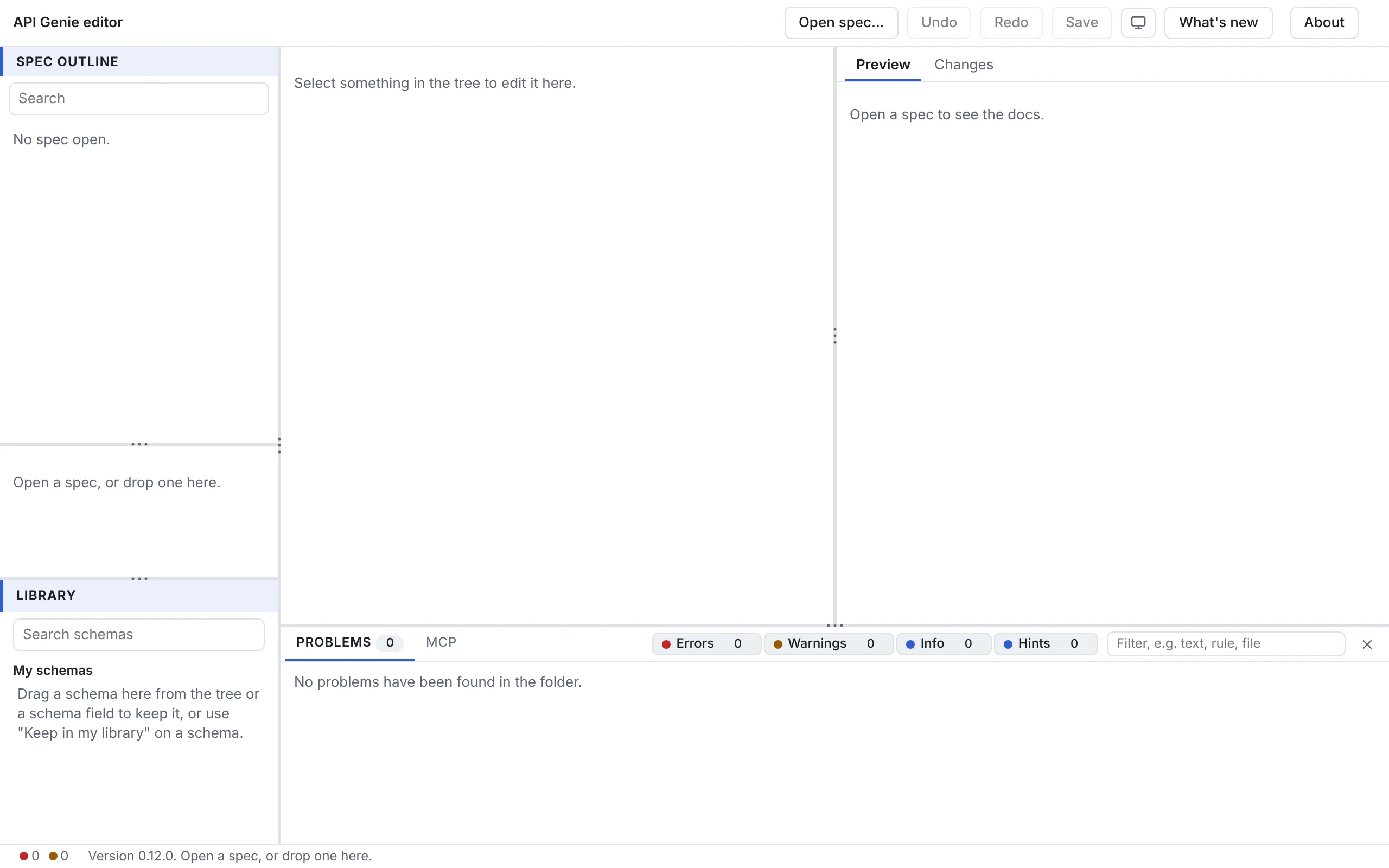
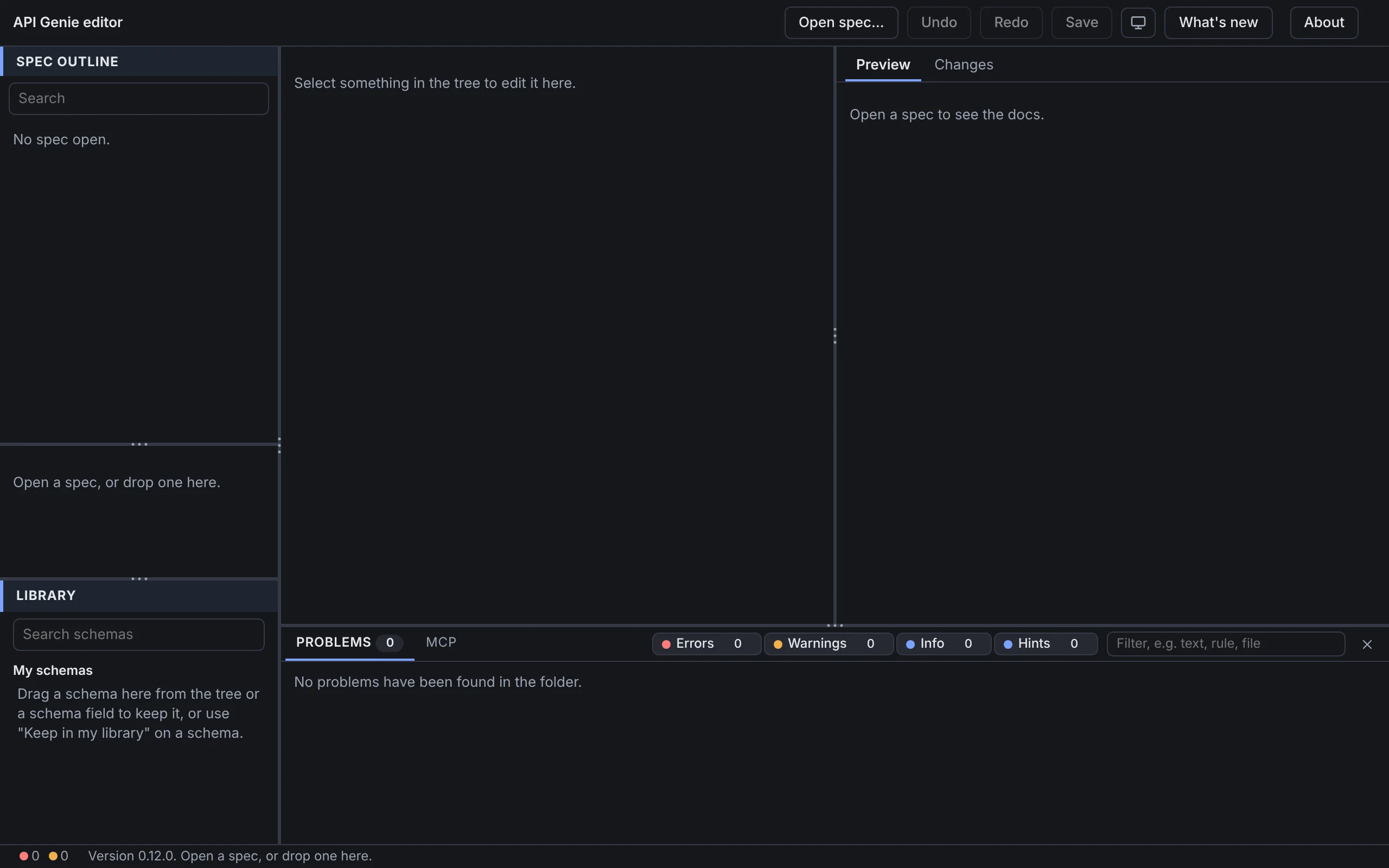
Open a spec
Choose Open spec… in the toolbar and pick the spec file, such as the openapi.yaml of a
repository you cloned. The editor reads the files its $refs name, and theirs, and the status bar
says what it found: Opened openapi.yaml and 2 referenced files. When a referenced file could not
be read, the status bar counts it and the file list says which.
- Web. In Chrome and Edge, Open spec… uses the File System Access API: the editor reads
the picked file, and asks for its folder with Allow access to their folder…, under the file
list, when a reference leads to a file it cannot read on its own. Allow a folder above the
spec, and the editor reads the referenced files from it, saves the changes in place, and finds
the project’s
apigenie.yamland the environment files there. In Firefox and Safari there is no picker for folders: drop the spec on the page with the files it refers to, as the next section says. - Desktop. File › Open Spec… (
Ctrl+O,Cmd+Oon macOS) does the same from the spec’s folder, and File › Open Recent lists the last ten specs. The app starts on the last spec it had open, or on the spec given on the command line:apigenie-editor openapi.yaml. - VS Code. Right-click a YAML or JSON file and choose Open with API Genie Editor, or pick it from the editor’s title bar on an OpenAPI or AsyncAPI document. The extension reads the referenced files from the workspace folder itself.
Drop a spec on the page
Drag the spec file onto the window and drop it, with the files it refers to when the browser cannot read them on its own. The editor opens the spec among them and reads the others as references. A folder is refused, and the status bar says so: Drop a spec file: the editor opens a spec and the files it refers to, not a folder. Dropped files are saved as downloads in Firefox and Safari, since the page cannot write them back; Chrome and Edge give the editor a handle it can write to. The desktop app and VS Code open files their own way, and take no drop.
The spec and the files it refers to
The spec is the file you edit. The files it refers to are listed under Referenced, not being edited in the file list and shown read-only, so that a change meant for one API does not reach every API that shares them. Choose a referenced file and press Edit this file to edit it with the spec; its unsaved changes then count on the Save button like the spec’s.
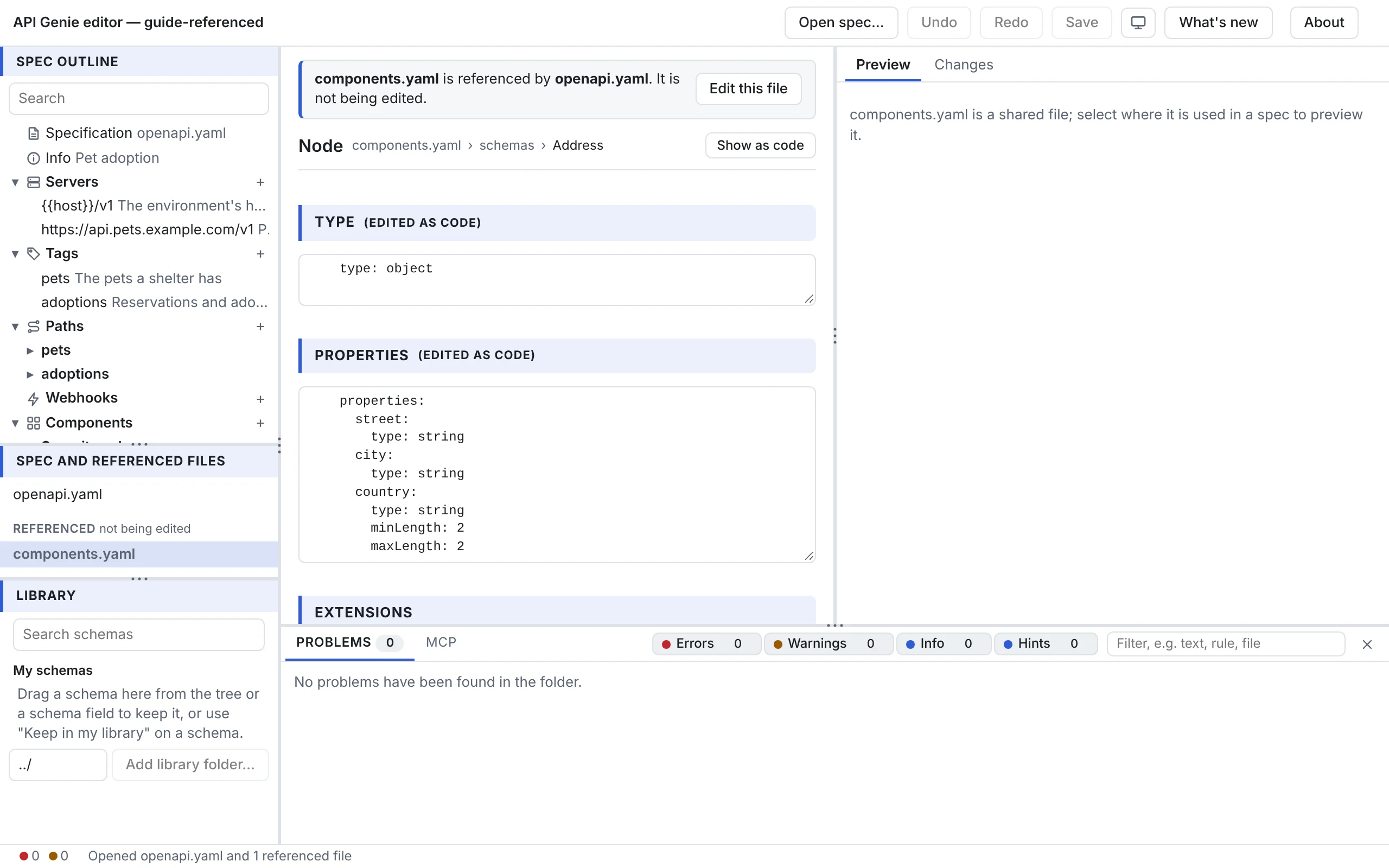
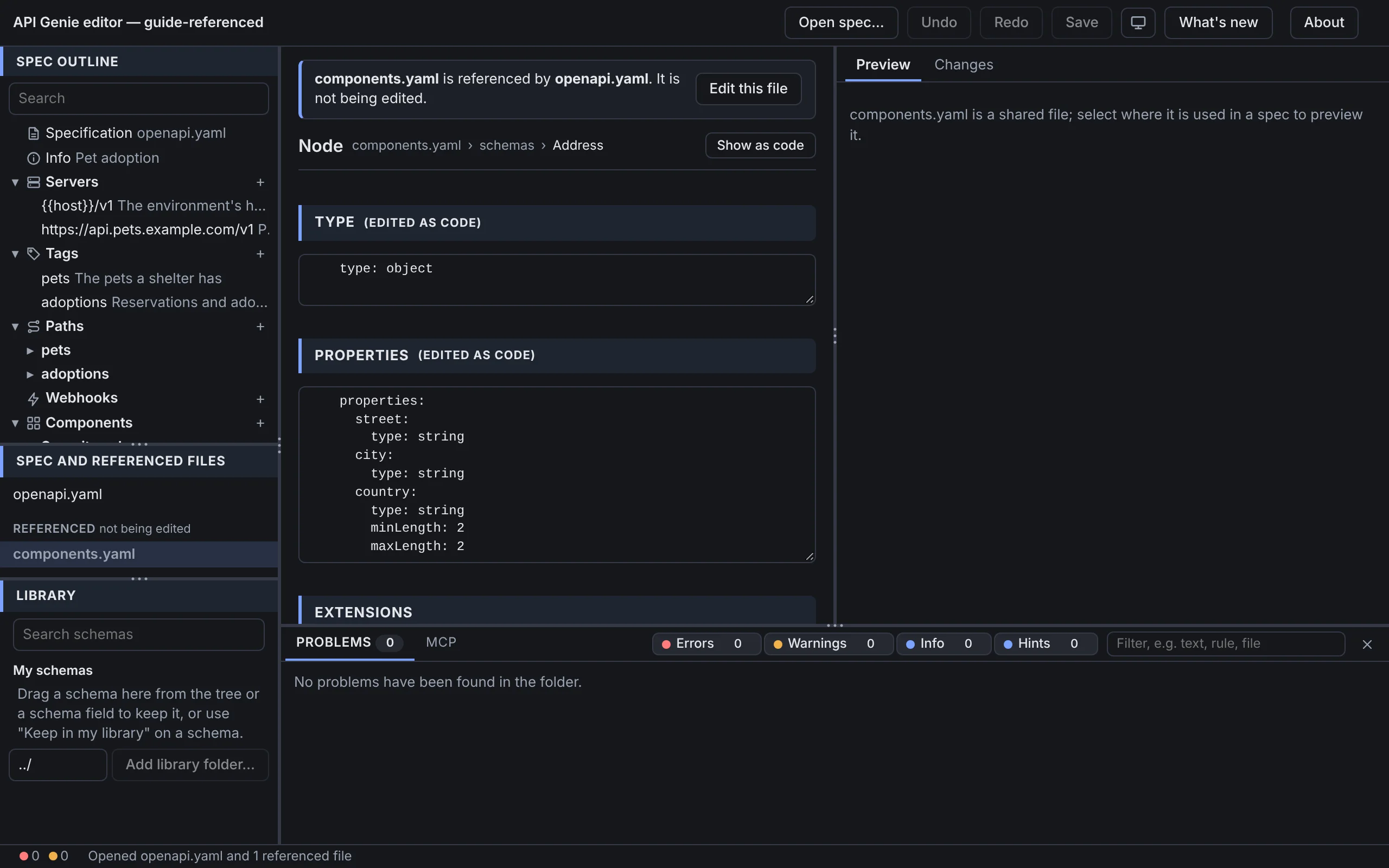
Two more groups can appear in the tree. Shared files holds files of plain schemas, responses or parameters that the spec refers to, with their top-level entries. Import-only files holds Swagger 2.0 documents, AsyncAPI 2.x documents and Postman collections, which Import, export and bundle converts.
Create a spec
On the desktop, New spec… in the toolbar, or File › New… (Ctrl+N), opens the New spec
dialog: pick OpenAPI 3.1 or AsyncAPI 3.0 and a file name, openapi.yaml or asyncapi.yaml by
default. The new file joins the open files next to the spec, unsaved until you save it, and opens
in the tree. It holds the smallest valid document of its kind, titled New API, version 1.0.0,
with an empty paths or empty channels and operations.
- Desktop. With no spec open, the dialog asks for the kind, then where to save the file, and the new spec opens from there.
- VS Code. API Genie: New Spec…, in the Command Palette or the title bar of the editor, puts
the new spec next to the file open in the editor and creates it at once. With nothing open,
make an empty
.yamlfile with File › New File…, open it with Open with API Genie Editor, and run the command. - Web. A page cannot create a file. Create it outside the editor and open it.
Save
Save (Ctrl+S, Cmd+S on macOS) writes every file with unsaved changes; the button counts
them. A file written back has the lines an edit changed and nothing else: the comments, the key
order, the anchors and the quoting of the rest are as they were, and a file opened and saved
without an edit is the same bytes. Where the host cannot write a file, such as a dropped file in
Firefox, Save downloads it instead.
On the desktop, File › Save As… (Ctrl+Shift+S) writes the current file’s text anywhere on
disk; a copy saved inside the spec’s folder joins the open files, and the status bar says when its
relative $refs point back into the open folder. In VS Code, Save and Save As… are VS Code’s,
and so is the unsaved marker on the tab.
Close
File › Close Spec (Ctrl+W) on the desktop closes the spec and the files it brought, after
asking about unsaved changes, as opening another spec and quitting do. The web editor has no
Close: opening another spec replaces the files, and unsaved changes are lost when the tab closes
or another spec opens, without a question. VS Code asks about its unsaved documents as it does for
any file.
Next
Edit an OpenAPI API works on the files you opened. The editor’s hosts in the reference says how each host opens, reads and saves files.