The window
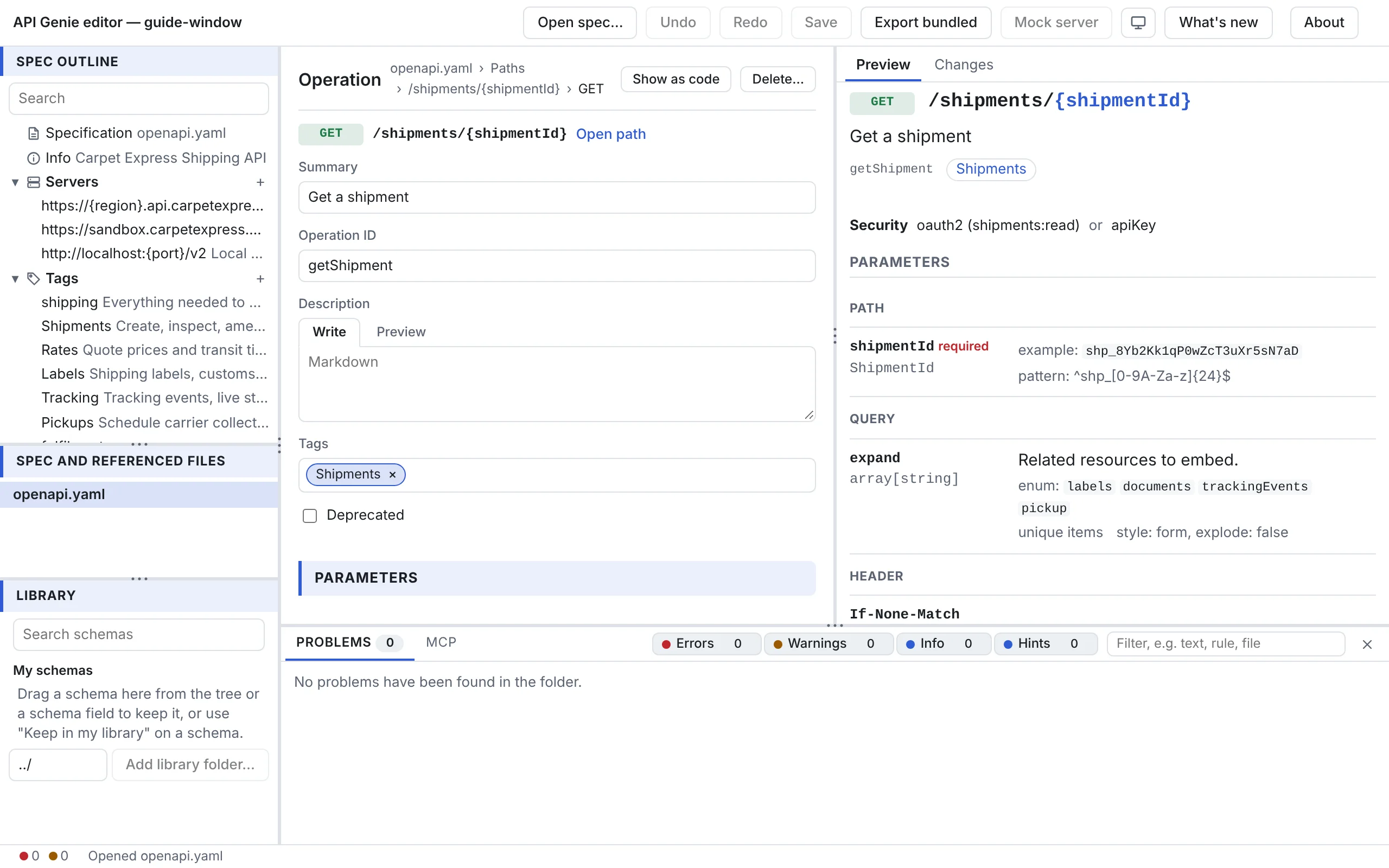
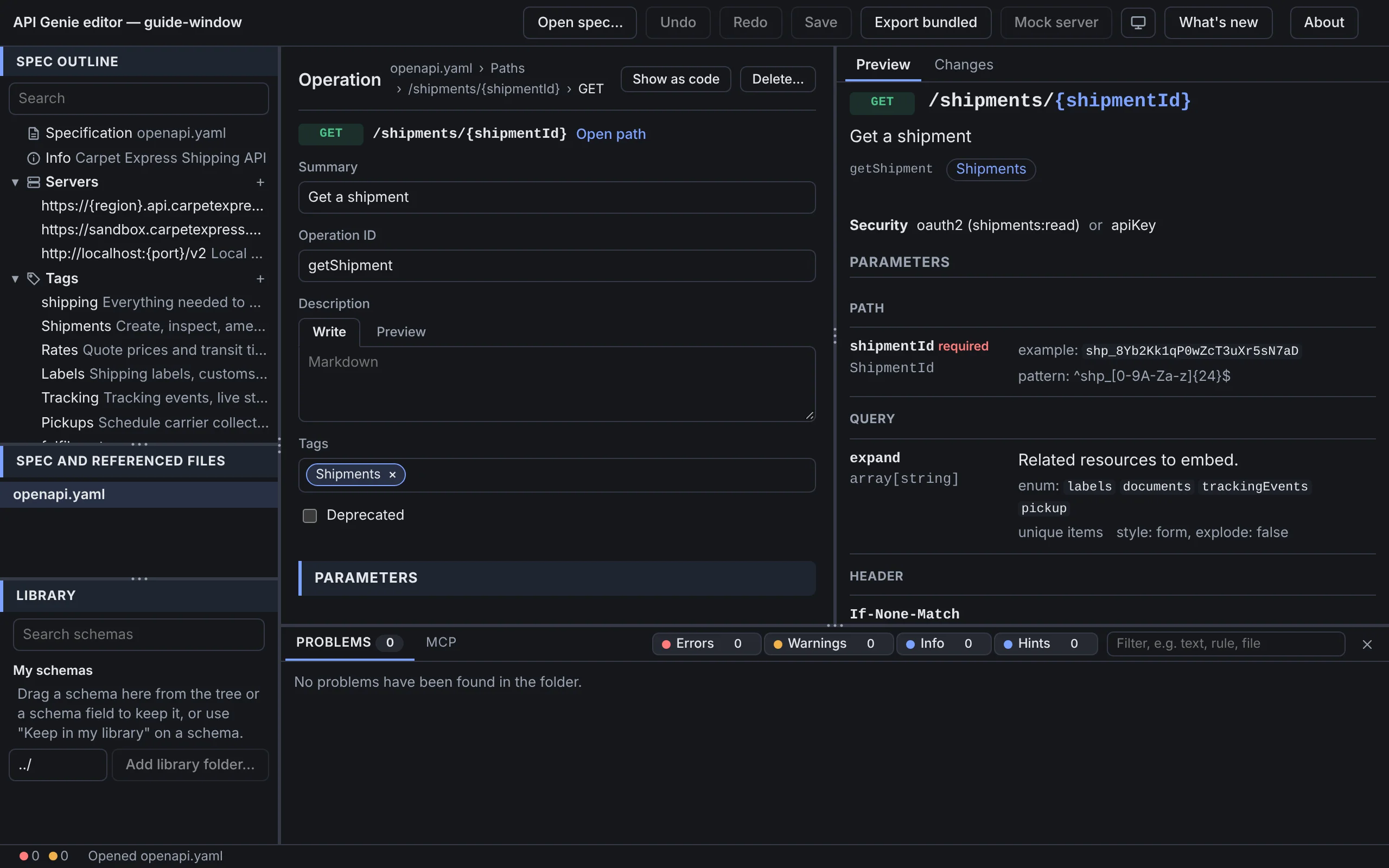
The window has six parts: a toolbar across the top, a side bar on the left, the form in the middle, a right pane with tabs, a panel along the bottom and a status bar under it. The other chapters call them by the names given here.
The toolbar
The title, API Genie editor, is followed by the name of the open folder. On the web, and in VS Code since 0.13.0, API Genie links to the website’s home page. About names the host.
| Button | What it does |
|---|---|
| New spec… | Adds an OpenAPI 3.1 or AsyncAPI 3.0 spec next to the open one, unsaved until you save it. On the desktop only: in VS Code the command API Genie: New Spec… does it, and the web editor cannot create a file. |
| Open spec… | Picks a spec file. The editor reads the files its $refs name with it. |
| Undo, Redo | Step back and forward through the edits since the spec was opened, in forms and in code alike. In VS Code they are VS Code’s. |
| Save (2) | Writes every file with unsaved changes; the number counts them. |
| Export bundled | Downloads the spec with the files it refers to inlined, as one file. Shown for an OpenAPI spec. |
| Mock server | Serves the selected spec with apigenie-server, on the desktop and in VS Code. |
| The sun, moon or screen | The theme: System, Light or Dark, in turn. VS Code’s theme applies there. |
| What’s new | The release notes of the editor’s versions, with a dot while a version you have not read has notes. On the desktop since 0.13.0. VS Code has no button: a notice after an update, and the command API Genie: What’s New, open the extension’s changelog. |
| About | The editor’s version, the host and its version, the commit it was built from, and the addresses of the Docs, the Downloads, the hosts reference and the releases. Report a problem opens GitHub’s bug report form with the version and the system filled in. |
The side bar
Three panels share the left side; drag the bars between them to give one more room.
- The API tree, under the heading Spec outline, is the outline of the open files. For an OpenAPI document: the Specification row, Info, Servers, Tags, Paths with the operations grouped by tag (Untagged for those without one), Webhooks and Components by kind. For an AsyncAPI document: Info, Servers, Channels, Operations, Messages and Components. Files the spec shares with other specs are under Shared files, and files the editor can only import under Import-only files. The Search box filters the tree by name, and the menus beside it filter an AsyncAPI tree by protocol and direction. A badge on a row counts its problems. + adds an entry to a collection, and the menu on the right of a row renames or deletes it. Edit an OpenAPI API works the tree.
- Spec and referenced files lists the spec and the files its references reach. A dot marks a file with unsaved changes. The files under Referenced, not being edited are shown and not changed until you choose Edit this file on one. When a referenced file could not be read, Allow access to their folder… appears here.
- The Library keeps schemas of yours and shows shared schema folders, for dragging into the spec. The Library is its chapter.
The form
The form in the middle edits what is selected in the tree. Its header gives the node’s location as a trail of links, from the file to the node, and two actions: Show as code edits the node as text in place of the form, and Delete… removes an entry after a confirmation that lists the references it breaks. A long form gets the list of its sections on the right, which scrolls to the one you pick and marks the one in view.
What a form does not model is still there, at the end of the form: each such key with its YAML,
marked (edited as code), the x- extensions under Extensions, and Add an extension or a
key. A problem that belongs to a field is under that field, with its quick fix when there is one.
The right pane
| Tab | What it shows |
|---|---|
| Preview | The documentation of the selected node as readers see it, with Try it out under an OpenAPI operation. |
| Flow | The message flow diagram of an AsyncAPI document, which you can edit. Hidden for OpenAPI. |
| Changes | The API changes since the last save, each rated, and the text diff. |
| Git | The repository the folder is in: status, diff, commit and branches. On the desktop only. |
The bottom panel
The panel holds two tabs. Problems lists every finding in the open files, with a filter box and
one toggle per severity; a click on a finding selects the node it is about. MCP connects to a
Model Context Protocol server and calls its tools; the desktop app has it since 0.13.0. The counts
in the status bar open and close the panel; on the desktop, View › Panel (Ctrl+J) does too.
The status bar
From the left: the counts of errors and warnings, which open the panel; N conflicts with the disk while a file changed on disk where you have unsaved changes; the message of the last thing the editor did, such as Opened openapi.yaml and 2 referenced files or Saved; and the build the editor was made from.
Arrange the window
Drag the bar between two parts to resize them. A bar takes the keyboard too: the arrow keys move
it, with Shift in larger steps, Home and End take it to one side, and Enter puts it back
at its default position. On the desktop, View › Side Bar (Ctrl+B), View › Panel (Ctrl+J)
and View › Right Pane (Ctrl+Alt+B) show and hide the parts; on macOS, Cmd+B, Cmd+J and
Cmd+Option+B. The sizes and the hidden parts are kept on this computer, so the window opens as
you left it.
Next
Open and create a spec puts files in the window. The editor’s hosts in the reference lists what each part does on each host.