Try it out
The preview of an OpenAPI operation has the same Try it out as the published documentation, with the editor around it: the request is built from the operation as you edit it, variables come from the project’s environment files, and a response can go back into the spec as an example.
Send a request
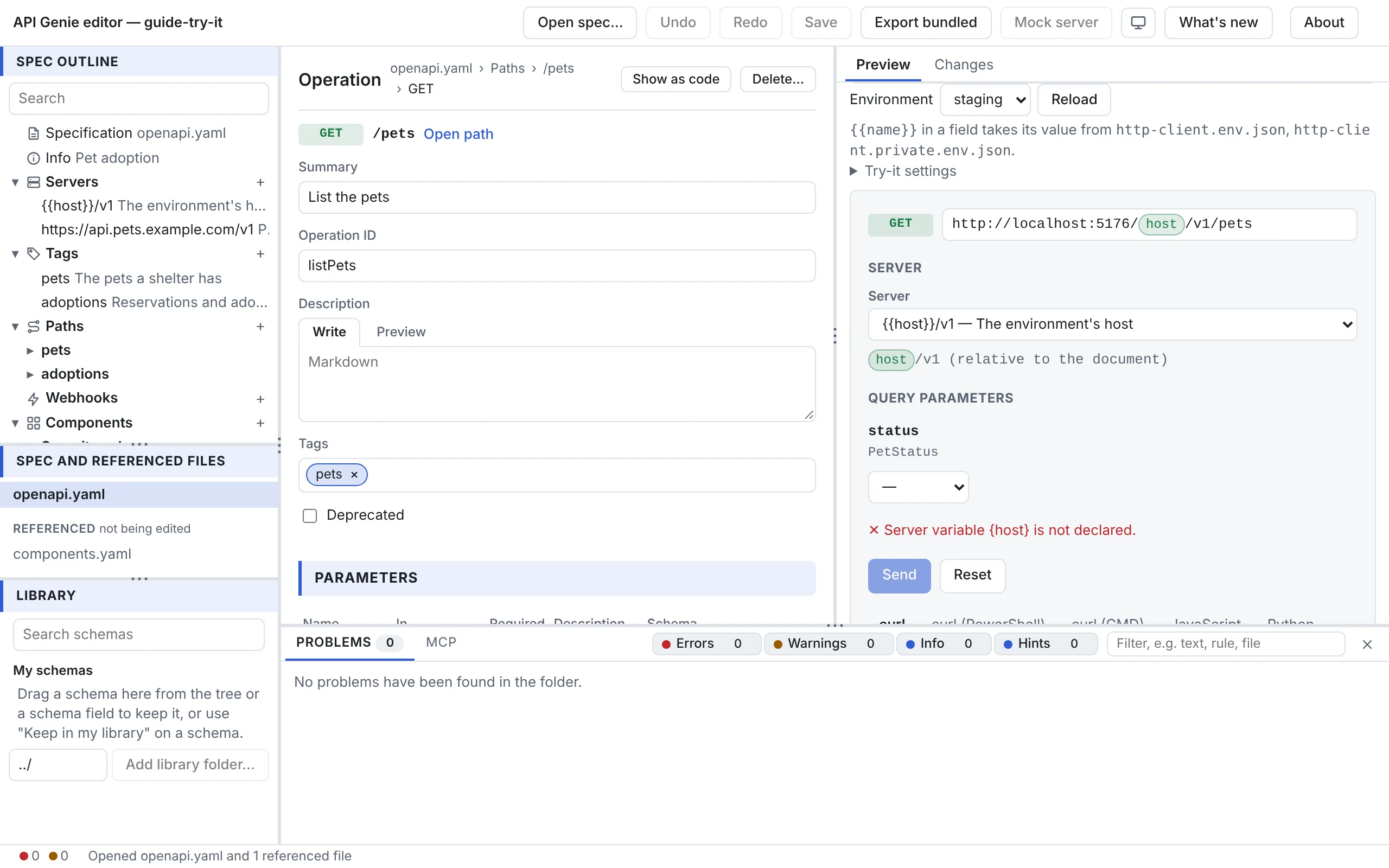
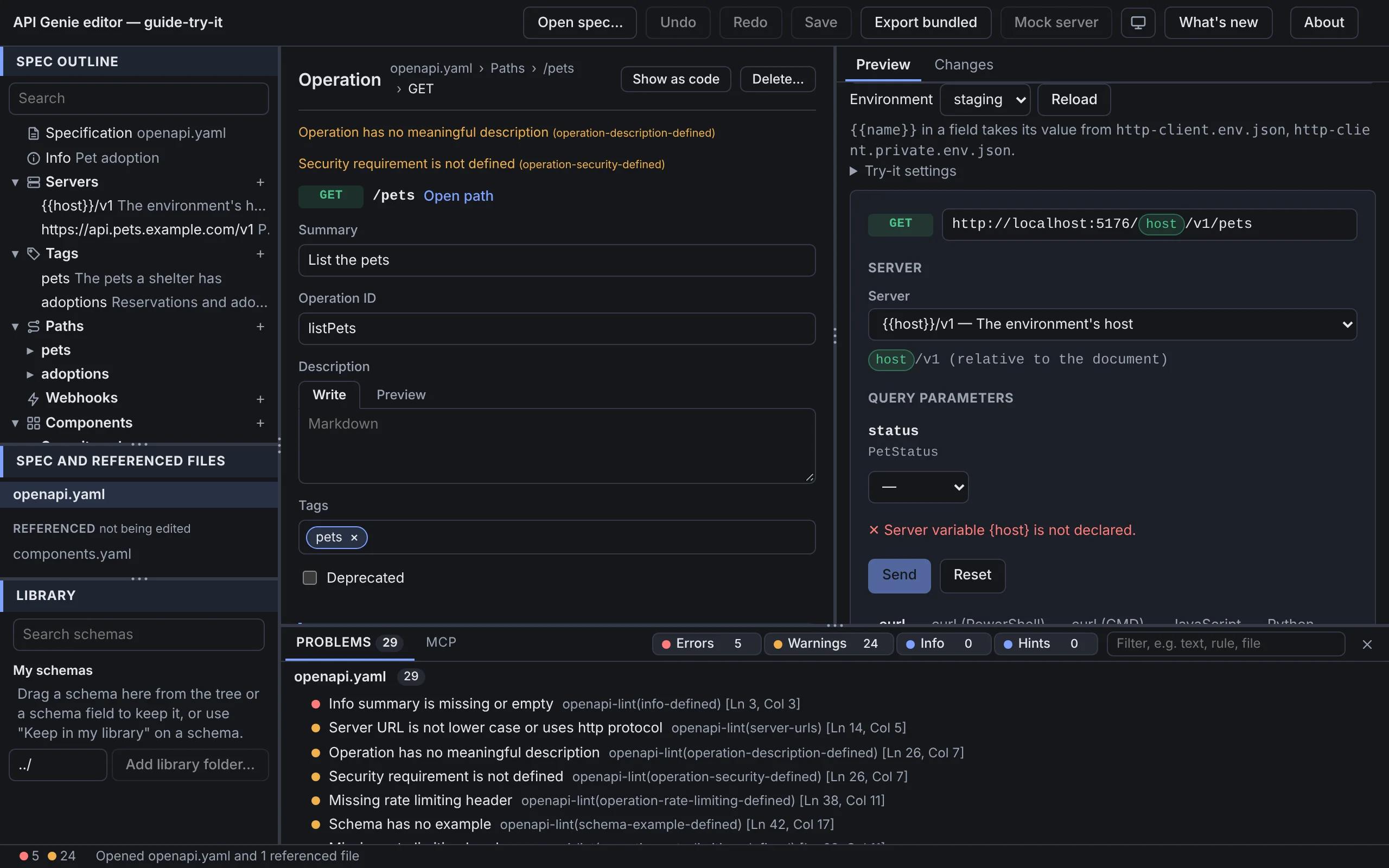
Select an operation and open its preview. Under the documentation, Try it out shows the method
and the URL, then the Server (the spec’s servers, or a URL you type), the Authentication with
its credentials, the parameters by location, the request body with its content type, and the
Accept header. A problem the request has, such as a required parameter left empty, is listed
above the buttons; Send (Ctrl+Enter, Cmd+Enter on macOS) stays disabled until the errors
are fixed. Reset puts the fields back to the spec’s defaults and examples.
The response shows its status, its time, its headers and its body, as text, JSON, an image or
the list of events of a server-sent stream. History (n) keeps the last twenty sends of the
operation on this computer, per folder and spec, with credentials masked and without the response
bodies. Pick one to put its parameters, headers and body back in the form; a note names the
secrets to type again, and a body too large to keep leaves the current body as it is. Code
samples in curl, JavaScript and Python follow the request. A webhook cannot be tried: the API
sends it to your server.
A server on http:// refuses from a page served over HTTPS, as mixed content; browsers also ask
a server on a local or private address for an OPTIONS preflight. The messages above the
buttons say so when it happens.
Pick an environment
Open Try-it settings above the preview. The Environment menu lists the environments of
http-client.env.json and http-client.private.env.json, read as
apigenie test reads them.
VS Code, and the desktop app on Windows, read .env and .env.<name> too; on macOS and Linux
the app’s folder access leaves out files whose names start with a dot. The desktop app and
VS Code read the environments since 0.13.0. {{name}} in a parameter, the body, a server
variable or the server URL shows as a pill whose tooltip gives the value and the file it comes
from. In those fields and in a credential, {{name}} takes its value when the request is sent;
{{$guid}}, {{$timestamp}} and the other generated values are made then. Reload reads the
files again after you change them. Environments that $extends others work as in
apigenie test; where apigenie test would stop, Try it out shows the problem above the request
instead.
Values from any file other than http-client.env.json are secrets: the tooltip masks them, and
a secret is not filled into a field that still holds the spec’s default or example.
Keep secrets out of committed files
A credential, or a parameter whose name says it carries a secret, such as Authorization or
api_key, that takes its value from http-client.env.json gets a warning, because that file is
meant to be committed. Move to http-client.private.env.json on the warning moves the entry to
the same environment of the private file, creates the file when it is missing, and reads the
environments again. Unsaved changes to either file stop the move until they are saved. The button
needs a folder the editor can write: on the desktop and in VS Code since 0.13.0, and in Chrome and
Edge once a folder is allowed; a file dropped in Safari or Firefox gets the warning alone.
Authorize
Authentication lists the operation’s security schemes, with a mark on those you are authorized
for, and Credentials takes the key, the token or the user and password of each. An OAuth 2.0
scheme with the authorization-code or implicit flow opens the provider’s page in a popup, which
returns to the editor with the token. In VS Code the page opens in the system browser and returns to
http://127.0.0.1:33418/oauth2-redirect: register that URL with the provider, and change the
port in the apigenie.tryIt.oauth2RedirectPort setting when it is taken. Try-it settings
shows the redirect URL to register.
A proxy for CORS
When a server refuses the page’s requests, type the URL of a CORS proxy in CORS proxy of Try-it settings; No proxy clears it. The desktop app needs one as much as a browser does, because its window is a web view. VS Code’s extension host sends the requests itself, so CORS does not apply there, and the field is not shown.
Save a response
Two buttons under a response write it down. Save as example adds the response as a named
example of the operation’s response in the spec, after a check of a JSON body against the
response’s schema; secret header values are left out. A stream of server-sent events or JSON
records is saved as the list of the items received, each checked against the media type’s
itemSchema. An event keeps its event (unless it is message), its own id (not one carried
over from an earlier event), retry and data. The spec needs the stream’s own media type, such
as text/event-stream, with an itemSchema (x-itemSchema before OpenAPI 3.2) and no schema.
That is when the mock answers with the items as a stream
(Responses); a text/* or */* entry is refused. Save as
mock response leaves
the spec as it is, and is off for a stream. It adds a scenario to the configuration of
apigenie-server, in the project’s file or in a new
apigenie-server.yaml next to the spec, so that the mock answers the operation with this status
and body. The second button needs a folder the editor can write: on the desktop and in VS Code,
and in Chrome and Edge once a folder is allowed with Allow access to their
folder….
While the toolbar’s mock server serves the spec, a note above Try it out offers to send the requests there, and Use the spec’s servers sends them to the real ones again.
AsyncAPI operations
The preview of an AsyncAPI operation tries it on the real broker: it publishes a message to the channel, or subscribes to it and lists what arrives, on Kafka, AMQP, MQTT and WebSocket servers. This runs in the desktop app and in VS Code, which start the broker client on your computer; a browser page cannot, and the web editor says so in the preview.
MCP servers
The MCP tab of the bottom panel connects to an MCP server, lists its tools and calls them with
arguments made from their input schemas. Use it to try a server made by
apigenie-generator server mcp, or apigenie-mcp itself. The desktop app has the tab since
0.13.0. Streamable HTTP takes an MCP endpoint URL; a server on another origin must allow the
editor’s origin and expose the Mcp-Session-Id header, or go through the CORS proxy. Command
(stdio), since 0.13.0 on the desktop and in VS Code, starts the server from a
command line, with NAME=value words before the program for its environment, in the opened
folder, after you confirm the command. Connect lists the tools; each has a form and a Call
button.
Next
Mock the API gives Try it out a server before the real one exists. Variables and OAuth 2 in the reference has the format of the environment files.